<strong>Instant Access to Your Account</strong>

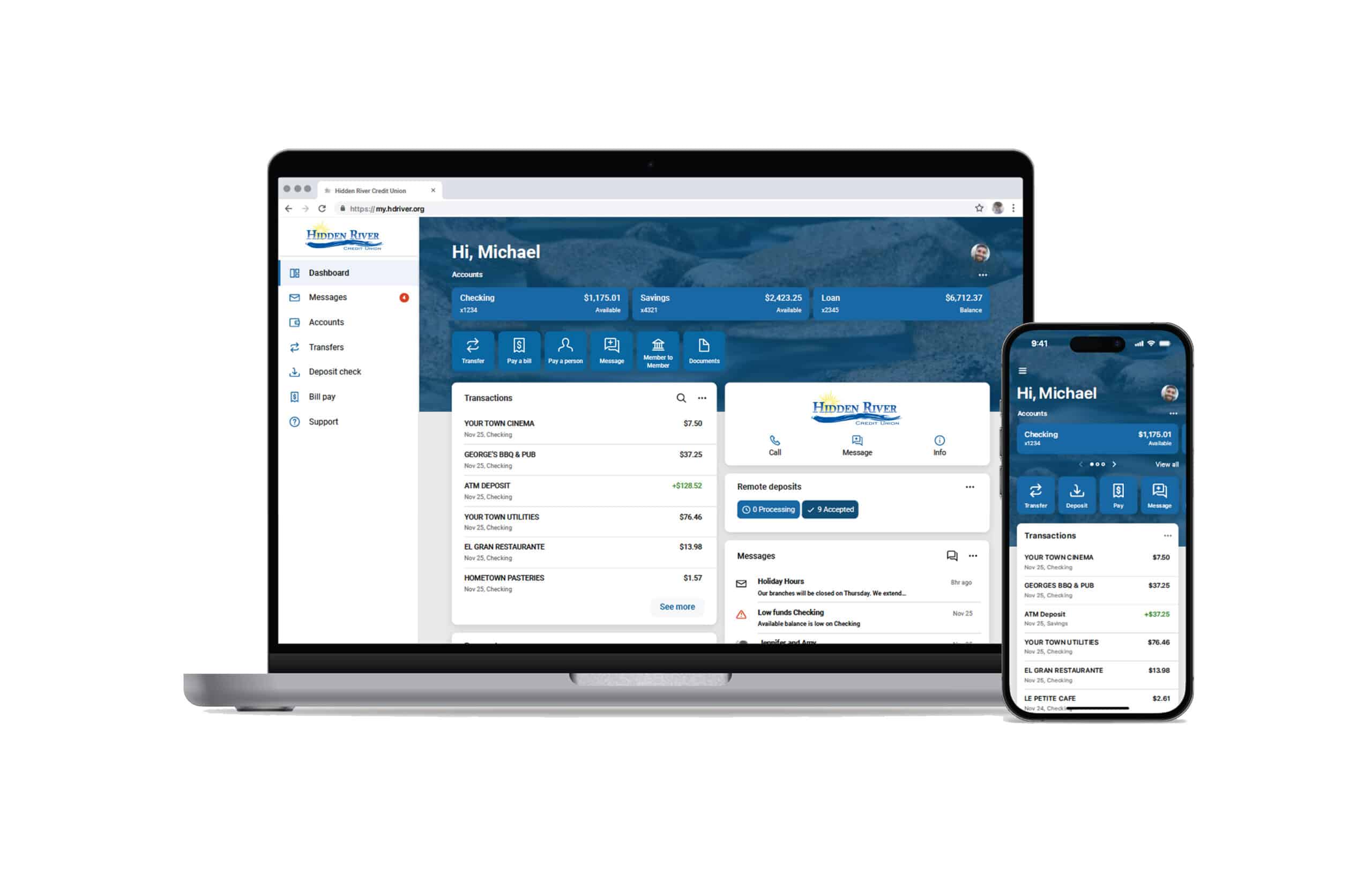
HRCU’s online and mobile access combination offers a best-in-class solution to manage your account, control your card, and fully integrate your digital membership experience.

<em>Make your financial life less complicated when you enjoy 24/7 access at your fingertips.</em>

HRCU online and mobile dashboard views on laptop and mobile device

<strong>Your Simplified Digital Experience</strong>

Managing your finances from home, in the office, and on-the-go just got easier!

<strong>Download HRCU’s Mobile App</strong>

<strong><em>NEW</em>  My $pend – Budget Tool</strong>

A built-in financial management resource to help you gain a better insight into your spending habits.

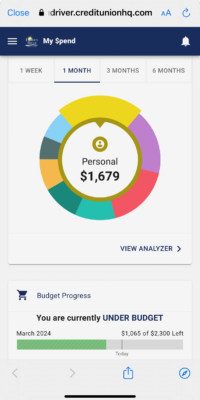
Screenshot of HRCU&#039;s My $pend Budget Tool on mobile device. Includes spend wheel and Personal spending total of $1,679.
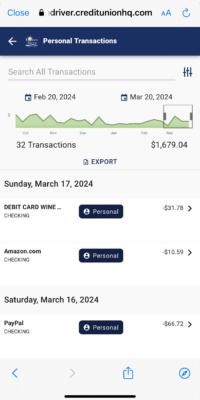
Screenshot of HRCU&#039;s My $pend Personal Transactions on mobile device. Includes graphic range of data for 32 total transactions, as well as details of 2 transactions on March 17, 2024 and 1 transaction on March 16, 2024.

<strong>It’s Your Money, We Just Make it Easier to Manage</strong>

<strong>My $pend</strong> provides a big-picture view of your finances, including monthly bills, recurring expenses, paycheck deposits, and more.

  • Transactions are auto-assigned categories to easily track spending.
  • Add custom notes and tags to personalize expense tracking.
  • View spending totals by account type, category, and date range (weekly, monthly, etc.).
  • Search transaction descriptions within account history.
  • Set budgets for each category, establish purchase goals, and monitor progress.
  • Input due dates for bills and add paydays to review projected cashflow.
  • Link third-party accounts or enter asset and debt data manually to track total net worth.
  • Export data to excel for independent review.

Access the <strong>My $pend</strong> tool from the drop-down menu in the Hidden River CU mobile app or after clicking on an account in the desktop view.

<em>Use all of the <strong>My $pend </strong>features, none, or just a few – it’s entirely up to you!</em>

<strong>Frequently Asked Questions</strong>

Find answers to common member inquiries and learn troubleshooting best practices.

<strong>How do I enroll in HRCU’s Online & Mobile Access?</strong>

Choose one of the following methods to enroll:

    • Click on the <strong>Enroll Now</strong> button in the Your Simplified Digital Experience section at the beginning of this page.
    • Click the <strong>Online Access</strong> button at the top of this website, and select the <strong>First time user? Enroll now</strong> link at login.


<strong>What information do I need to enroll?</strong>

You will need to provide the following details:

    • Social Security Number
    • HRCU Member Number
    • Email Address (associated with your HRCU account)
    • Phone (associated with your HRCU account)


<strong>Where do I go to access the HRCU Mobile App?</strong>

Download the mobile app by typing “Hidden River CU” in the search field for one of the following device stores:

    • <strong>iPhone Devices:</strong> Apple Store
    • <strong>Android or All Other Devices:</strong> Google Play Store

<strong>How do I get to HRCU’s Online & Mobile Access?</strong>

You may use a desktop, laptop, mobile phone, iPad, or other internet-accessible device.

Choose one of the following methods to login:

    • Visit our website and enter your username in the <strong>User ID</strong> field at the top right corner of the home page, before clicking <strong>Submit</strong>. Or, click the <strong>Online Access</strong> button which takes you to the login screen.
    • Download the <em>NEW</em> HRCU Mobile App by typing “<strong>Hidden River CU</strong>” in the search field for either the Apple Store or Google Play Store, depending on your device.

<em>Note: You will not be able to access your account via old online bookmarks or the old mobile app.</em>


<strong>What is Two-Factor Authentication and why is it used for login?</strong>

Two-Factor Authentication is a security enhancement that prompts you to request a one-time access code when logging into HRCU’s Online and Mobile Access. This measure adds an extra layer of security on top of your unique username and password. The one-time access code process helps to verify your device and better protect both your credentials and account information.


<strong>Do I need to get a one-time access code at every login?</strong>

No. You may check the “Don’t ask for codes again while using this browser” box if you don’t want to receive a one-time access code at future logins.

<em>Note: If you ever want to reset your security settings and remove a device, you can make changes in Settings once logged into your dashboard.</em>

<strong>How do I change my password?</strong>

Once logged into HRCU’s Online & Mobile Access, click on your account profile settings:

    • <strong>Via Online:</strong> On the left menu, scroll to the bottom and click on your <em>Profile Name</em>. Select <strong>Personal Settings </strong>and then choose <strong>Security.</strong> Click <strong>Edit</strong> to the right of your existing password and follow the onscreen prompts.
    • <strong>Via the Mobile App:</strong> Open the drop-down menu in the upper left of your mobile device. Click on your <em>Profile Name</em> at the bottom of the menu. Select <strong>Settings</strong> and then choose <strong>Security</strong>. Click on <strong>Change password</strong> and follow the onscreen prompts.


<strong>What if I am locked out or forgot my password?</strong>

At the login screen, click on <strong>Forgot?</strong> and follow the onscreen prompts to reset your password.

<strong>Are all internet browsers compatible with HRCU’s Online & Mobile Access?</strong>

To support the security measures we put in place to keep member data safe, we require the use of a modern and up-to-date browser. As new versions of browsers are released, we will discontinue support for older versions. HRCU’s Online & Mobile Access is supported on the following browsers:


<strong>Online Browsers</strong>

    • <strong>Microsoft Edge: </strong>Microsoft Edge will be supported at the latest version only. HRCU’s Online Access platform may deny the use of older Microsoft Edge versions 60 days after a new version is released.
    • <strong>Google Chrome: </strong>Chrome should automatically update and major updates are released approximately every 12 weeks. If Chrome is two versions older than the current stable channel version, the HRCU’s Online Access platform may deny its use.
    • <strong>Apple Safari: </strong>Each year Apple typically makes upgrades to Safari during the fall. Approximately 60 days after a new version is released, HRCU’s Online Access platform may deny the use of older versions. However, this change requires that the new Safari version is available on both MacOS and iOS devices.
    • <strong>Mozilla Firefox: </strong>FireFox should automatically update. If FireFox is two versions older than the current stable channel version, the Banno Digital Platform may deny it access.

<em>Note: Internet Explorer is not a supported browser.</em>


<strong>Mobile Operating Systems</strong>

    • <strong>iOS: </strong>HRCU’s iOS app supports versions 17.0 and newer.
    • <strong>Android: </strong>HRCU’s Android app supports versions 9.0 and newer.

<strong>Is there a session timeout?</strong>

Yes. You will be logged out after 10 minutes of inactivity.


<strong>Are my Online & Mobile Access transactions secure?</strong>

Yes. We provide secure financial services through a protocol known as the Secure Sockets Layer (SSL). This protocol does the following:

    • Prevents other computers from eavesdropping by encrypting all data transmitted between our site and your computer.
    • Sends your browser a signed, non-forgeable, digital certificate to validate our site to you.

<strong>How do I view pending transactions?</strong>

Once logged into HRCU’s Online & Mobile Access:

    • Select the account you would like to view from your dashboard. (Via the mobile app, next click <strong>Transactions</strong>.)
    • View all pending transactions at the top of the account history. If none are shown, you may not have any pending.


<strong>How do I search transactions?</strong>

Once logged into HRCU’s Online & Mobile Access:


<strong>Via Online</strong>

    • Click<strong> Accounts</strong>, and select the account in which you would like to search.
    • In the Transactions title bar section above account activity, select the <strong>Magnifying Glass</strong> icon.
    • Click <strong>Search and Sorting Options</strong> to open Advanced Search.
    • On the Advanced Search pop-up, you can select specific filters and finalize by clicking <strong>Search.</strong>


<strong>Via the Mobile App</strong>

    • Select the account in which you would like to search.
    • Tap on <strong>Transactions.</strong>
    • In the Transactions title bar section above account activity, select the <strong>Magnifying Glass</strong> icon.


<strong>How do I add a tag, note, or image to a transaction?</strong>

Once logged into HRCU’s Online & Mobile Access:

    • Choose the account of interest.
    • Tap on Transactions (in the mobile app).
    • Select the Transaction you wish to edit.
    • On the Transaction Details pop-up, click on the icon for one of the following:
        • Add Tags
        • Add Notes
        • Add Images
    • Follow the on-screen prompts to update the transactions.
    • Close the Transaction Details pop-up, or tap Transactions (in the Mobile App).

<em>Any tags, notes, and images added to transactions will be accessible on all devices when you log into online and mobile access.</em>

<strong>How do I transfer between my HRCU accounts?</strong>

Once logged into HRCU’s Online & Mobile Access:

    • Select an account from the dashboard.
    • Select <strong>Transfer.</strong>
    • On the Transfer screen, enter the following:
        • Choose <strong>Account</strong> to transfer from
        • Choose <strong>Account</strong> to transfer to
        • Enter <strong>$ Amount</strong>
        • Select <strong>More Options</strong> to set a <strong>Frequency</strong> (i.e., once, weekly, every two weeks, twice a month, or monthly), select a <strong>Start Date</strong> from the calendar pop-up, or include a <strong>Memo </strong>(for immediate, internal transfers only).
    • <strong>Submit</strong> to finalize your transfer selections.


<strong>How do I transfer to another HRCU member?</strong>

Once logged into HRCU’s Online & Mobile Access:

    • On the dashboard sub-menu below the Accounts section, select <strong>Member to Member </strong>(drag the sub-menu on the mobile app to scroll for this option).
    • On the Member to Member screen, select a recipient account.
    • To create a recipient account, choose <strong>New Member Transfer </strong>and enter the following:
        • Input the <strong>first three letters</strong> of the Member’s Last Name to transfer to
        • Enter <strong>the Member #</strong> to transfer to
        • Select <strong>Type</strong> of account to transfer to (i.e., Share or Loan)
        • Enter the <strong>two-digit ID</strong> of account to transfer to (e.g., 00 for Savings, 06 for Checking)
        • If you prefer to save this information, check the box <strong>Save for Future Use </strong>(must create a nickname if choosing to save this recipient).
        • Choose<strong> Next</strong> to finalize recipient information for the HRCU member
    • After selecting your recipient account, enter the following:
        • Choose <strong>Account</strong> to transfer from
        • Enter <strong>$ Amount</strong>
        • Set a <strong>Frequency</strong> (i.e., once, weekly, every two weeks, twice a month, or monthly)
        • Select a <strong>Start Date</strong> for the transfer(s) to begin
        • If you choose to include an optional note, you may add it to the <strong>Memo </strong>field (for immediate, internal transfers only).
    • Choose <strong>Next</strong> to review and verify your transfer details.
    • <strong>Submit</strong> to finalize your transfer selections.


<strong>If another member transfers money into my account using Online and Mobile Access, can they see my balance?</strong>

No. Any individual transferring money into your account <strong>can not</strong> see your balance, transactions, or account history.

<strong>How do I enroll in eStatements?</strong>

Once logged into HRCU’s Online & Mobile Access:

    • Select an account from the dashboard.
    • Select <strong>Settings.</strong>
    • At the bottom of the screen, choose <strong>Documents.</strong>
    • Check the box for <strong>Enroll All Accounts </strong>and select <strong>Save.</strong>


<strong>How do I view my eStatements and tax documents?</strong>

You can both view and download your account documents only if you are enrolled in eStatements.

Once logged into HRCU’s Online & Mobile Access:

    • Select an account from the dashboard.
    • On the Account Details page, choose <strong>Documents.</strong>
    • eStatements and tax documents will be listed for each month and year available.

<strong>How do I access my credit card information?</strong>

Simply, choose your preferred method to manage your account:

  • Log into HRCU’s Online & Mobile Access and select your credit card account, or
  • Call (866) 604-0380 and follow the automated prompts.


<strong>How do I know how many rewards points I have?</strong>

  • Log into HRCU’s Online & Mobile Access and select your credit card account.
  • From inside your credit card information, select the “rewards” option.

<strong>How do I access the My $pend tool?</strong>

Access the <strong>My $pend</strong> tool from the drop-down menu in the Hidden River CU mobile app or after clicking on an account in the desktop view.

<strong>How can I deposit a check without visiting an HRCU location?</strong>

You may easily deposit a check with your mobile device at any time while on the go.

Once logged into HRCU’s Mobile Access:

    • Choose the account of interest.
    • Tap on <strong>Deposit Checks.</strong>
    • Follow the onscreen prompts:
        • Select the account to deposit to
        • Enter requested check details
        • Take a photo of check front and back
    • <strong>Submit</strong> to finalize your deposit.

Once successfully submitted, there is a 1 to 3 minute delay before the deposit will appear in your account due to an automatic check review and approval process. Please keep your check in a safe place for a minimum of five days after the deposit has posted.

<em>Note: This feature requires a share draft checking account. </em>


<strong>Am I required to endorse a check submitted through Mobile Deposit?</strong>

Yes. You must endorse the check with your signature. Additionally, please note “For Mobile Deposit Only” in the signature area.


<strong>What types of checks are accepted through Mobile Deposit?</strong>

We accept the following checks through Mobile Deposit:

    • Personal checks
    • Payroll checks
    • Cashier/Teller checks
    • Government checks
    • Insurance checks

<em>Note: You may not deposit checks drawn on the same account in which they are being deposited. Additionally, you can not re-deposit a check through Mobile Deposit or at an HRCU location once it has already been submitted. </em>


<strong>What types of checks are NOT accepted through Mobile Deposit?</strong>

We do not accept the following checks through Mobile Deposit:

    • Third-party checks (checks payable to any person or entity other than the member)
    • Post-dated or stale-dated checks
    • Checks not payable in U.S. currency
    • Altered checks
    • IRA and share certificate deposits
    • Money orders
    • Traveler checks


<strong>Why did my check get rejected after I submitted it through Mobile Deposit?</strong>

A check may be rejected through Mobile Deposit if it is:

    • Incomplete
    • Post-dated or stale-dated
    • Made payable to a third party (any person or entity other than the member)
    • Stamped with a “non-negotiable” watermark
    • Labeled void
    • Too blurry and illegible


<strong>What is the dollar amount for check holds with Mobile Deposit?</strong>

There are no holds on checks in the amount of $225 or less. Checks submitted through Mobile Deposit which exceed $225 will have the first $225 released and a four business day hold will be placed on the remaining balance.

Note: For additional information pertaining to deposit limits, please refer to the Funds Availability Policy Disclosure within HRCU’s Membership Agreement.


<strong>Why am I unable to see or access Mobile Deposit?</strong>

HRCU may rescind a member’s access to Mobile Deposit for the following reasons:

    • Negative account balance over 30 days
    • Delinquent loan 15 days or more
    • Share account negative 15 days or more
    • Attempts to resubmit previously deposited checks
    • Negative ChexSystems report
    • Overdraft Advance rescinded
    • Cash in/cash out accounts
    • Charged off loan
    • High risk accounts
    • Inmate accounts
    • Fraud or kiting activity

<em>Note: HRCU reserves the right to rescind access to Mobile Deposit at any time without explanation.</em>

<strong>How do I pay a bill using HRCU’s Online & Mobile Access?</strong>

Once logged into HRCU’s Online & Mobile Access:

    • On the dashboard sub-menu below the Accounts section, select <strong>Pay a Bill </strong>(displayed as <strong>Pay</strong> on the mobile app).
    • Select a Payee.
    • To create a payee, choose <strong>Add Another Bill</strong> and enter the following:
        • Payee name
        • Payee nickname (optional)
        • Phone number
        • Account number
        • Name on bill (optional)
        • Payee address details (i.e., street line 1, street line 2 (optional), city, state, zip)
        • <strong>Submit</strong> to finalize payee information.
    • After selecting your payee, enter the following:
        • Choose <strong>Account</strong> to transfer from
        • Enter <strong>$ Amount</strong>
        • Select <strong>More Options</strong> to set a <strong>Frequency</strong> (i.e., once, weekly, every two weeks, twice a month, or monthly), select a <strong>Sends </strong>delivery method from the options listed, <strong>Schedule a date</strong> to send your payment using the pop-up calendar, or include Notes as a description in the Check Memo (displayed on check) or Transaction Comment (only visible to you) fields.
    • Choose <strong>Submit</strong> to finalize and send your payment by check.

<strong>What alerts am I able to setup?</strong>

There are numerous ways you may personalize your alerts using HRCU’s Online & Mobile Access, including:


<strong>User Alerts</strong>

    • <strong>New Device Logins:</strong> Receive an alert when there is a login to your account from a new device.
    • <strong>Email Address Change:</strong> Receive an alert if the email address associated with your account is changed.
    • <strong>Password Change:</strong> Receive an alert if the password associated with your account is changed.
    • <strong>Mobile Phone Change:</strong> Receive an alert if the mobile phone number associated with your account is changed.
    • <strong>Username Change:</strong> Receive an alert if the username associated with your account is changed.


<strong>Account Alerts</strong>

    • <strong>Balance:</strong> Receive an alert if your account balance is over or under a specified dollar amount.
    • <strong>Transaction:</strong> Receive an alert if a transaction posts to your account as a credit (deposit or earning) or debit (withdrawal or fee) over a specified dollar amount.
    • <strong>Card Management:</strong> Report a lost/stolen debit card or re-order a debit card.


<strong>How do I setup an alert?</strong>

Once logged into HRCU’s Online & Mobile Access:


<strong>User Alerts</strong>

    • <strong>Via Online:</strong> Go to the bottom left of the screen and click your profile name. Select <strong>Account Settings.</strong>
    • <strong>Via the Mobile App:</strong> Go to the top left of the screen, select the drop-down menu, and tap your profile name in the bottom left. Tap <strong>Settings.</strong>
    • Choose <strong>User Alerts.</strong>
    • Select <strong>Active</strong> to the right of the alert you want to update.
    • Choose to toggle your preferred notification method via SMS and/or in-app message (email notification is required).
    • <strong>Save</strong> to finalize and submit.


<strong>Account Alerts</strong>

    • Select an account from the dashboard.
    • Choose <strong>Alert Preferences </strong>(then, click <strong>Balances, Transactions, and Deposits </strong>for online access).
    • Select <strong>Add Alert </strong>via <strong>Balance </strong>or <strong>Transaction</strong>, depending on the type of alert you prefer.
    • Enter the details of your preferred alert (i.e., over, under, debit, credit).
    • Enter the dollar amount of your alert.
    • Check the box of the notification method you prefer to receive an alert (i.e., text, email, or in-app message).
    • Select <strong>Add Alert</strong> to finalize and submit.

<strong>How do I change my email address, phone number, or primary mailing address?</strong>

Once logged into HRCU’s Online & Mobile Access:

    • <strong>Via Online:</strong> Go to the bottom left of the screen and click your profile name. Select <strong>Personal Settings.</strong>
    • <strong>Via the Mobile App:</strong> Go to the top left of the screen, select the drop-down menu, and tap your profile name in the bottom left. Tap <strong>Settings, </strong>then select the arrow to the right of your profile name and username.
    • Choose the <strong>Edit</strong> button in line with the contact information you want to update.
    • Follow the prompts on the pop-up screen to confirm and verify your credentials.
    • Update your information as needed.
    • <strong>Save</strong> to finalize and submit.


<strong>How do I change my username, password, mobile passcode, or two-factor authentication?</strong>

Once logged into HRCU’s Online & Mobile Access:

    • <strong>Via Online:</strong> Go to the bottom left of the screen and click your profile name. Select <strong>Personal Settings, </strong>then click <strong>Security </strong>on the left sub-menu.
    • <strong>Via the Mobile App:</strong> Go to the top left of the screen, select the drop-down menu, and tap your profile name in the bottom left. Tap <strong>Settings, </strong>then select the arrow to the right of <strong>Security.</strong>
    • Select the item you want to <strong>Edit</strong> (i.e., username, password, passcode, two-factor authentication, or two-step verification).
    • Follow the prompts to confirm and verify your credentials.
    • Update your information as needed.
    • <strong>Save</strong> to finalize and submit.

<strong>How do I block my debit card?</strong>

Once logged into HRCU’s Online & Mobile Access:

    • On the dashboard, scroll to the <strong>Card Management</strong> section and click on the debit card of interest.
    • Select the green button to the right of the card information and toggle it to <strong>lock your card.</strong>
    • Follow the prompts on the pop-up screen to confirm you want to lock (or block) your debit card.


<strong>How do I report my debit card is lost or stolen?</strong>

Once logged into HRCU’s Online & Mobile Access:

    • On the dashboard, scroll to the Card Management section and click on the debit card of interest.
    • Select the arrow to the right of <strong>Report Lost/Stolen.</strong>
    • Select the appropriate option to confirm:
        • My card is lost.
        • My card is stolen.
    • Follow the prompts to report the card as lost or stolen.

<strong>How do I order checks?</strong>

Once logged into HRCU’s Online & Mobile Access:

    • Select <strong>Checking</strong> in the Accounts section of your dashboard.
    • Choose <strong>Order Checks</strong>.
    • Follow the onscreen prompts and submit your order request.

<strong>How do I use Zelle?</strong>

You can send, request, or receive money with Zelle<sup class="reg">®</sup>. To get started, log into the Hidden River CU app or online banking. In the main menu, select “Send money with Zelle<sup class="reg">®</sup>“.

To send money using Zelle<sup class="reg">®</sup>, simply select someone from your mobile device’s contacts (or add a trusted recipient’s email address or U.S. mobile number), add the amount you’d like to send and an optional note, review, then hit “Send.” The recipient will receive an email or text message notification via the method they used to enroll with Zelle<sup class="reg">®</sup>. Money is available to your recipient in minutes if they are already enrolled with Zelle<sup class="reg">®</sup>.

To request money using Zelle<sup class="reg">®</sup>, choose “Request,” select the individual from whom you’d like to request money, enter the amount you’d like, include an optional note, review and hit “Request”. If the person you are requesting money from is not yet enrolled with Zelle<sup class="reg">®</sup>, you must use their email address to request money. If the person has enrolled their U.S. mobile number, then you can send the request using their mobile number.

To receive money, just share your enrolled email address or U.S. mobile number with a friend and ask them to send you money with Zelle<sup class="reg">®</sup>. If you have already enrolled with Zelle<sup class="reg">®</sup>, you do not need to take any further action. The money will be sent directly into your Hidden River Credit Union account, typically within minutes.

If someone sent you money with Zelle<sup class="reg">®</sup> and you have not yet enrolled with Zelle<sup class="reg">®</sup>, follow these steps:

  1. Click on the link provided in the payment notification you received via email or text message.
  2. Select Hidden River Credit Union.
  3. Follow the instructions provided on the page to enroll and receive your payment. Pay attention to the email address or U.S. mobile number where you received the payment notification – you should enroll with Zelle<sup class="reg">®</sup> using that email address or U.S. mobile number to ensure you receive your money.


<strong>Is my information secure?</strong>

Keeping your money and information safe is a top priority for Hidden River Credit Union. When you use Zelle<sup class="reg">®</sup> within our mobile app or online banking, your information is protected with the same technology we use to keep your Hidden River Credit Union account secure.


<strong>Who can I send money to with Zelle?</strong>

Zelle<sup class="reg">®</sup> is a great way to send money to family, friends, and people you are familiar with such as your personal trainer, babysitter or neighbor.<sup>*</sup>

Since money is sent directly from your Hidden River Credit Union account to another person’s bank account within minutes<sup>*</sup>, Zelle<sup class="reg">®</sup> should only be used to send money to friends, family and others you trust.

If you don’t know the person or aren’t sure you will get what you paid for (for example, items bought from an online bidding or sales site), you should not use Zelle<sup class="reg">®</sup>. These transactions are potentially high risk (just like sending cash to a person you don’t know is high risk).


<strong>Can I pay a small business with Zelle?</strong>

Some small businesses are able to receive payments with Zelle<sup class="reg">®</sup>. Ask your favorite small business if they accept payments with Zelle<sup class="reg">®</sup>. If they do, you can pay them directly from your Hidden River CU app or online banking using just their email address or U.S. mobile number.


<strong>Does Hidden River Credit Union or Zelle offer purchase protection?</strong>

Neither Hidden River Credit Union nor Zelle<sup class="reg">®</sup> offers purchase protection for payments made with Zelle<sup class="reg">®</sup> – for example, if you do not receive the item you paid for, or the item is not as described or as you expected. Only send money to people and small businesses you trust and always ensure you’ve used the correct email address or U.S. mobile number when sending money.


<strong>I believe I’ve been a victim of a scam. Who should I contact?</strong>

Please contact our customer support team at (570) 622-3399. Qualifying imposter scams may be eligible for reimbursement.


<strong>Can I use Zelle internationally?</strong>

In order to use Zelle<sup class="reg">®</sup>, the sender and recipient’s bank or credit union accounts must be based in the U.S.


<strong>Can I reverse or cancel a payment?</strong>

No, Zelle<sup class="reg">®</sup> payments cannot be reversed.

You can only cancel a payment if the person you sent money to hasn’t yet enrolled with Zelle<sup class="reg">®</sup>. To check whether the payment is still pending because the recipient hasn’t yet enrolled, you can go to your activity page, choose the payment you want to cancel, and then select “Cancel This Payment”. If you do not see this option available, please contact our customer support team at (570) 622-3399 for assistance with canceling the pending payment.

If the person you sent money to has already enrolled with Zelle<sup class="reg">®</sup> through their bank or credit union’s mobile app or online banking, the money is sent directly to their bank account and cannot be canceled. This is why it’s important to only send money to people you know and trust, and always ensure you’ve used the correct email address or U.S. mobile number when sending money.

If you sent money to the wrong person, please immediately call our customer support team at (570) 622-3399 to determine what options are available.


<strong>Are there any fees to send money using Zelle?</strong>

No, Hidden River Credit Union does not charge any fees to use Zelle<sup class="reg">®</sup> in our mobile app.

Your mobile carrier’s messaging and data rates may apply.


<strong>What if I want to send money to someone whose bank or credit union doesn’t offer Zelle?</strong>

As of March 31, 2025, all users must be enrolled through one of the more than 2,200 banks and credit unions that offer Zelle<sup class="reg">®</sup> in order to send and receive money. The list of participating financial institutions is always growing. You can find the updated list of participating banks and credit unions live with Zelle<sup class="reg">®</sup> at Zellepay.com. If their bank or credit union is not listed, we recommend you use another payment method at this time.


<strong>I have scanned a Zelle QR code, but it isn’t working.</strong>

The Zelle<sup class="reg">®</sup> QR code feature is currently not available at Hidden River Credit Union. The ability to use Zelle<sup class="reg">®</sup> QR code will be available soon.